Uconnect Ram 1500 2014 Get to Know Guide
[x] Cancel search | Manufacturer: RAM, Model Year: 2014, Model line: 1500, Model: Ram 1500 2014Pages: 252, PDF Size: 6.74 MB
Page 63 of 252

Uconnect® Access Remote Features
If you own a compatible iPhone®or Android®powered device, the Uconnect®Access
App allows you to remotely lock or unlock your doors, start your engine or activate your
horn and lights from virtually anywhere (Vehicle must be within the United States and
have network coverage). You can download the App from Mopar Owner Connect or from
the App Store (iPhone) or Google Play store. Visit UconnectPhone.com to determine if
your device is compatible. For Uconnect
®Phone customer support and to determine if
your device is compatible.
U.S. residents - visit UconnectPhone.com or call 1–877–855–8400
Remote Start — This feature provides the ability to start the engine on your vehicle,
without the keys and from virtually any distance. You can send a request to your
vehicle in one of two ways:
1. Using the Uconnect
®Access App from a compatible smartphone.
2. From the Mopar Owner Connect website.
•
You can also send a command to turn-off an engine that has been remote started.
• After 15 minutes if you have not entered your vehicle with the key, the enginewill shut off automatically.
• This remote function requires your vehicle to be equipped with a factory- installed Remote Start system. To use this feature after the Uconnect
®Access
App is downloaded, login with your user name and Uconnect®Security PIN.
• You can set-up notifications for your account to receive an email or text (SMS) message every time a command is sent. Login to Mopar Owner Connect
(moparownerconnect.com) and click on Edit Profile to manage Uconnect
®
Notifications.
Remote Door Lock/Unlock — This feature provides the ability to lock or unlock the door
on your vehicle, without the keys and from virtually any distance. You can send a
request to your vehicle in one of three ways:
1. Using the Uconnect
®Access App from a compatible smartphone.
2. From the Mopar Owner Connect website.
3. By contacting the Uconnect
®Care on the phone.
To use this feature after the Uconnect®Access App is downloaded, login using your user
name and Uconnect®Security PIN. Press the “App” button on your smartphone with
the closed lock icon to lock the door, and press the “open lock” icon to unlock the
driver’s door.
You can set-up notifications for your account to receive an email or text (SMS) message
every time a command is sent. Login to Mopar Owner Connect (moparownerconnect.com)
and click on Edit Profile to manage Uconnect
®Notifications.
ELECTRONICS
61
Page 64 of 252

Remote Horn And Lights— It’s easy to locate a vehicle in a dark, crowded or noisy
parking area by activating the horn and lights. It may also help if you need to draw
attention to your vehicle for any reason. You can send a request to your vehicle in one
of three ways:
1. Using the Uconnect
®Access App from a compatible smartphone.
2. From the Mopar Owner Connect website.
3. By contacting the Uconnect
®Care on the phone.
To use this feature after the Uconnect
®Access App is downloaded, login using your
user name and Uconnect®Security PIN. You can set-up notifications for your
account to receive an email or text (SMS) message every time a command is sent.
Login to Mopar Owner Connect (moparownerconnect.com) and click on Edit Profile
to manage Uconnect
®Notifications.
Voice Texting (U.S. Residents Only) — Want to dictate a personal message? Register
with Uconnect
®Access to take advantage of a new, cloudbased Voice Texting service,
an enhancement to Voice Text Reply.
Voice Texting allows you to compose a new text or reply to an incoming text message.
Before you attempt to use the Voice Texting feature, check to ensure you have the
following:
1. A paired, Bluetooth
®enabled phone with the Message Access Profile (MAP). Not
all Bluetooth®enabled phones support MAP, including all iPhones®(Apple iOS).
Visit UconnectPhone.com for system and device compatibility information.
2. An active Uconnect
®Access trial or paid subscription. Press the “U” button on
the lower right hand corner of the touchscreen to begin the registration process.
3. Accept the Allow MAP profile request on your smart phone. (Please refer to device manufacturer instructions for details).
To Send A Text Message:
1. Press the “Uconnect
®Phone” button.
2. Wait for the beep.
3. Say “Text.”
4. Uconnect
®will prompt you “Say the phone number, or full name and phone type
of the contact you want to send a message to.”
5. Wait for the beep and say a contact that is in your phonebook, or a mobile phone number that you would like to send the message to.
6. Uconnect
®will prompt you “Please say the message that you would like to send.”
(If you do not hear this prompt, you may not have an active subscription with
Uconnect
®Access).
ELECTRONICS
62
Page 65 of 252

7. Wait for the beep, and then dictate any message up to 140 characters. If youexceed 140 characters, you will hear the following prompt: “Message was too
long; your message will be truncated.”
8. Uconnect
®will then repeat the message back to you.
9. Uconnect
®will prompt you: “To add to your message, say “Continue”; To delete
the current message and start over, say “Start Over”; to send the current message,
say “Send”; to hear the message again, say “Repeat”.
10. If you are happy with your message and would like to send it, wait for the beep and say “Send”.
11. Uconnect
®will then say “Sending your message.”
Sample Commands For Voice Text Reply And Voice Texting
Example Command Action
“Text John Smith” Send a message to specific contact in
address book
“Text 123 - 456 - 7890” Send 123 - 456 - 7890 a message from
your phonebook
“Show messages” See recent text messages listed by
number on Uconnect
®screen
“Listen to/view (message number four, for example)” Hear messages or read it on
Uconnect
®screen
“Reply” Send a voice text reply to a
current message
“Forward text/message to “John Smith” Forward current text to specific contact
in address book
“Forward text/message to “123 - 456 - 7890” Forward current text to specific
phone number
Uconnect® Access Via Mobile (If Equipped — Available On
Uconnect® 8.4A And Uconnect® 8.4AN)
Uconnect®Access via Mobile offers additional apps such as Aha™, iHeartRadio,
Pandora®and Slacker Radio. It uses your smartphone’s existing data plan to access
Uconnect®System-enabled apps, which you can control using both your touchscreen
and steering wheel controls. Customer’s data plan charges will apply.
To get started using Via Mobile apps, first register your Uconnect
®Access system
where you'll be guided through the setup of your Via Mobile (requires a compatible
Android or iPhone
®smartphone). Please refer to “Uconnect®Access Registration”
for more information.
ELECTRONICS
63
Page 66 of 252

The Uconnect®Access app is compatible with select iPhone®and Android smart-
phones. Visit UconnectPhone.com to confirm that your smartphone is compatible
with Uconnect
®. Once you’ve confirmed your smartphone is compatible, pair it to
the vehicle touchscreen via Bluetooth®to use Via Mobile apps. If using an iPhone®,
a USB cable may also be supported for the data connection.
Launch the Uconnect®Access App on your smartphone, and login with your username
and password that was set up during registration. Accept the Terms and Conditions.
•Ensure that Via Mobile data has been turned on under “Settings” in the Uconnect®
Access App.
• A green indicator next to the words Via Mobile will show when it is ready to provide data to the radio (a blue indicator when data is being sent). A red indicator means
that it is not ready to provide data.
ELECTRONICS
64
Page 67 of 252

Each time you want to use a Via Mobile app in your vehicle, the Uconnect Access App must
be running on your smartphone and the smartphone must be paired via Bluetooth®.
If equipped, the Via Mobile apps can be found by selecting the “Apps” soft-key in the lower
right corner of the radio touchscreen. Via Mobile apps are listed under the “All Apps” tab.
The words “Via Mobile” will appear after the app name indicating it is a Via Mobile app.
ELECTRONICS
65
Page 68 of 252

Via Mobile apps can also be launched through Voice Recognition by pressing the
VR button on the steering wheel and stating “launch” and then the name of the app.
For example, you can say “launch Aha via Mobile.”
NOTE:
For detailed information on how to use Via Mobile apps visit the Mopar Owner
Connect website (www.moparownerconnect.com) and login using the username and
password you set up when registering for Uconnect
®Access.
A message will be displayed to remind you that Via Mobile apps utilize the data plan
on your connected smartphone to provide content. Many smartphones have a limit to
how much data they can utilize before incurring additional charges. The amount of
data being used varies by smartphone device, cellular service provider and specific
app. Check your mobile phone service plan for more details.* Touch “OK” to continue
or the “X” to exit.
(*Additional smartphone data usage charges may apply.)
Determine If Your Vehicle Is Via Mobile-Enabled
To see if your Uconnect®8.4A or 8.4AN system is equipped with Via Mobile, press
the “Apps” button on the touchscreen, then press the “All Apps” tab on the left side
of the touchscreen. If you see Aha™, iHeartRadio, Pandora
®and Slacker then your
system is capable of playing Via Mobile apps (registration required).
Earlier vehicles with Uconnect
®8.4A or 8.4AN may qualify for a software upgrade to
enable Via Mobile. Call Uconnect Care at 855-792-4241 and please have the last
eight characters of your Vehicle Identification Number (VIN) available, or visit:
DriveUconnect.com/features/via-mobile/
• Click on Help & Support > Select your Brand > System Updates
Via Mobile Apps — If Equipped
• Aha™ by HARMAN — Aha™ by HARMAN makes it easy to instantly access your
favorite Web content on the go. Choose from over 40,000+ stations spanning
internet radio, personalized music, news, entertainment, hotels, weather, audio-
books, Facebook
®, Twitter®, and more.
• iHeartRadio — iHeartRadio provides instant access to more than 1,500 live radio
stations from across the country and allows listeners to create custom music
stations inspired by their favorite artists or songs.
• Pandora® — Pandora
®gives people the music and comedy they love anytime,
anywhere. Personalized stations launch instantly, with the input of a favorite artist,
track, comedian, or genre.
• Slacker Radio — Enjoy millions of songs and hundreds of handcrafted stations.
NOTE:
For detailed information on how to use Via Mobile apps visit the Mopar Owner Connect
website (moparownerconnect.com) and log in using the username and password you set
up when registering for Uconnect
®Access.
ELECTRONICS
66
Page 69 of 252
Uconnect® 3.0
Clock Setting
1. Press the Menu button at the bottom of the radio, and push the Enter/Browsebutton for System Settings. Next, select the Time and Format setting and then
select Set Time by pushing the Enter/Browse button.
2. Adjust the hours or minutes by turning the Tune/Scroll knob, then pressing the Enter/Browse button to move to the next entry. You can also select 12hr or 24hr
format by turning the Tune/Scroll knob, then pressing the Enter/Browse button on
the desired selection.
3. Once the time is set press the “Back” button to exit the time screen.
Audio
• Press the AUDIO button on the radio faceplate.
• The Audio Menu shows the following options for you to customize your audio settings.
Treble, Mid, Bass, Fade, Balance, Speed Adjusted Volume, Loudness and Auto
Volume Offset
• Select the desired setting to adjust, then push the ENTER/BROWSE button. Turn the TUNE/SCROLL knob to adjust the setting + or - 9. Press the “Back” button
when done.
ELECTRONICS
67
Page 71 of 252

Audio Jack (AUX)
The AUX allows a portable device such as an MP3 player or an iPod
®to be plugged
into the radio and utilize the vehicle’s audio system, using a 3.5 mm audio cable,
to amplify the source and play through the vehicle’s speakers.
• If the audio cable is connected to the AUX jack and portable device, press the MEDIA button, then touch the “Source” soft-key and select “AUX” to change the
mode to auxiliary device. This allows the music from your portable device to play
through the vehicle's speakers.
The functions of the portable device are controlled using the device buttons, not the
buttons on the radio. The volume may be controlled using the radio or portable
device.
Uconnect® 3.0 Available Media Hubs
Uconnect®
3.0 Media Hub
(USB, AUX
Ports) Media Hub
(SD, USB,
AUX Ports)Remote USB
Port (Fully
Functional)Remote USB
Port (Charg-
ing Only)Dual Charg-
ing Ports
S--OO
S = Standard Equipment
O = Optional Equipment
ELECTRONICS
69
Page 72 of 252
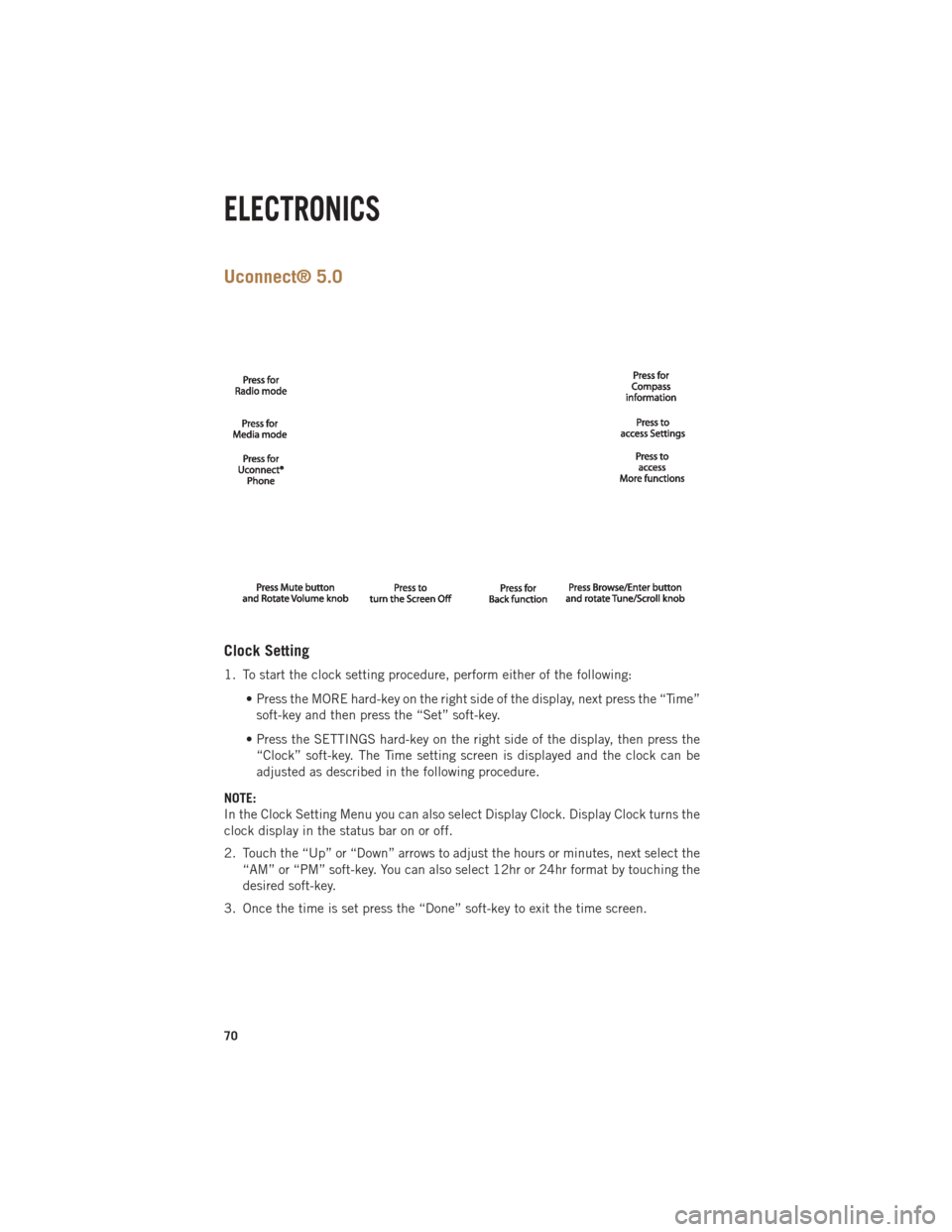
Uconnect® 5.0
Clock Setting
1. To start the clock setting procedure, perform either of the following:• Press the MORE hard-key on the right side of the display, next press the “Time”soft-key and then press the “Set” soft-key.
• Press the SETTINGS hard-key on the right side of the display, then press the “Clock” soft-key. The Time setting screen is displayed and the clock can be
adjusted as described in the following procedure.
NOTE:
In the Clock Setting Menu you can also select Display Clock. Display Clock turns the
clock display in the status bar on or off.
2. Touch the “Up” or “Down” arrows to adjust the hours or minutes, next select the “AM” or “PM” soft-key. You can also select 12hr or 24hr format by touching the
desired soft-key.
3. Once the time is set press the “Done” soft-key to exit the time screen.
ELECTRONICS
70
Page 75 of 252

USB/Audio Jack (AUX)/Bluetooth® Operation
USB/iPod®
• USB/iPod
®Mode is entered by either inserting a USB Jump Drive or iPod®cable
into the USB port or by touching the MEDIA hard-key located left of the display.
Once in Media Mode, touch the “source” soft-key and select “USB/iPod.”
•
Press the MEDIA hard-key, then touch the “source” soft-key and then select
“USB/iPod” to change the mode to the USB device if the device is connected,
allowing the music from your portable device to play through the vehicle's speakers.
Audio Jack (AUX)
The AUX allows a portable device, such as an MP3 player or an iPod
®, to be plugged
into the radio and utilize the vehicle’s audio system, using a 3.5 mm audio cable, to
amplify the source and play through the vehicle speakers.
•
Press the MEDIA hard-key, then touch the “source” soft-key and then select “AUX”
to change the mode to auxiliary device if the audio jack is connected, allowing the
music from your portable device to play through the vehicle's speakers.
The functions of the portable device are controlled using the device buttons, not the
buttons on the radio. The volume may be controlled using the radio or portable
device.
Bluetooth®
If using a Bluetooth
®- equipped device, you may also be able to stream music to your
vehicle's sound system.
• Press the MEDIA hard-key, then touch the “source” soft-key. Select “Bluetooth” to change the mode to Bluetooth
®if the device is paired, allowing the music from
your portable device to play through the vehicle's speakers.
Uconnect® 5.0 Available Media Hubs
Uconnect®
5.0 Media Hub
(USB, AUX
Ports) Media Hub
(SD, USB,
AUX Ports)Remote USB
Port (Fully
Functional)Remote USB
Port (Charg-
ing Only)Dual Charg-
ing Ports
S--SO
S = Standard Equipment
O = Optional Equipment
ELECTRONICS
73